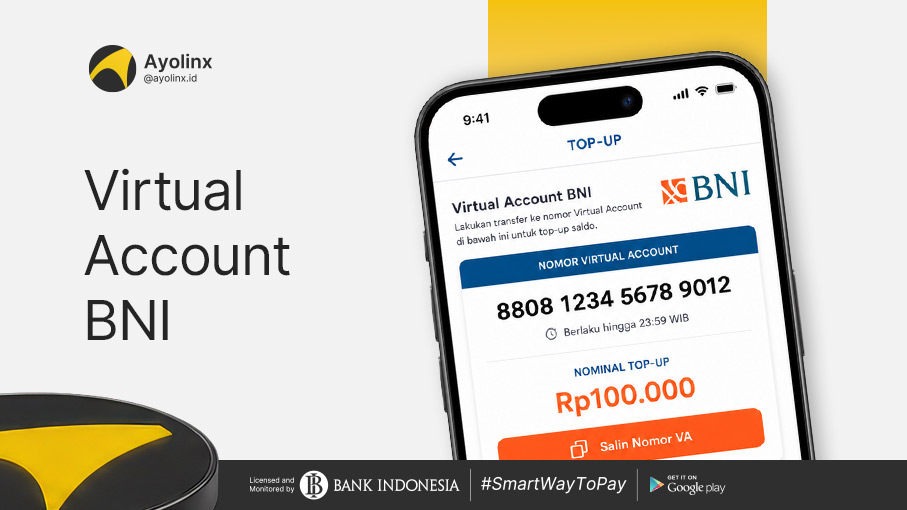
Have you ever received a BNI Virtual Account number when shopping online or paying a bill, but you are still confused about how to pay it? Don't worry, BNI Virtual Account payments can be made through the wondr by BNI application, BNI Mobile Banking, BNI ATMs, internet banking, BNIdirect business, tellers, Agen46, and even other banking services.
Virtual Account make payments easier because each number can be used as a customer or transaction identity. After a successful payment, the system can recognize the transaction and forward it to the company's or service provider's main account.
However, before making a payment, you need to understand the difference between a BNI Virtual Account number and the BNI bank code. The VA number is provided by the merchant or bill provider, whereas the BNI bank code is 009 and is typically used when making a transfer from another bank.
Here is a complete explanation regarding BNI Virtual Accounts, bank codes, payment methods, admin fees, and solutions if your transaction encounters issues.
What is a BNI Virtual Account?
A BNI Virtual Account is a virtual account number used to help companies or institutions receive and identify payments from customers. Each VA number can be linked to a specific customer or transaction. Therefore, the company can know exactly who made the payment without having to ask the customer to send a manual transfer receipt.
BNI Virtual Accounts are commonly used for:
- Online shopping payments
- Education fee payments
- Monthly bill payments
- Ticket and travel payments
- Insurance payments
- Installment payments
- Government service payments
- Digital product payments
- Business customer payment receipts
How Does a BNI Virtual Account Work?
The workflow of a BNI Virtual Account can be explained through the following steps:
- The customer selects BNI Virtual Account as the payment method.
- The merchant's system generates or displays the VA number.
- The customer copies the number.
- The customer makes the payment through a BNI channel or another bank.
- The system verifies the VA number and the payment amount.
- Successful transactions are recorded in the system.
- The funds are forwarded to the company's main account.
- The merchant updates the customer's order or billing status.
In the Virtual Account system, the VA number functions as a transaction identity. This allows the company to reconcile payments much faster and more accurately.
What is the BNI Virtual Account Code?
There is no single BNI Virtual Account code that applies to all merchants. The Virtual Account number will differ based on the company, institution, customer, or transaction. You must use the number that appears on the payment page, invoice, email, or merchant application.
If your banking app already provides a selection of bank names, you simply need to choose BNI without manually typing the code 009.
However, when an ATM machine asks for the bank code and account number simultaneously, enter 009 + the BNI Virtual Account number, then follow the instructions on the payment channel, as the column format may vary across different banks.
Differences Between a BNI Virtual Account and a Regular BNI Account
Although both serve as payment destination numbers, Virtual Accounts and regular accounts operate differently.
Virtual Account BNI |
Regular BNI Account |
| Created for specific customers or transactions. | Created for individuals or business entities. |
| Helps identify payments automatically. | Transfers usually need to be matched via account mutation. |
| Can have a predetermined billing amount. | The sender can input the amount themselves. |
| Can have a payment time limit/expiration. | Generally does not have an expiration period. |
| Funds are forwarded to the company's pooling account. | Funds go directly into the recipient's account. |
| The recipient's name can follow the merchant or customer. | The recipient's name follows the account owner. |
Types of BNI Virtual Accounts
BNI provides several types of Virtual Accounts that can be tailored to a company's transaction needs:
- Open Payment: Customers can input the payment amount themselves. This type is suitable for flexible payments, such as donations, deposits, or phased payments.
- Closed Payment: The payment amount is predetermined by the system. Customers must pay the exact amount displayed. Closed payments are usually used for bills, online shopping checkouts, tuition fees, or order payments.
- Partial Payment: Customers can pay a portion of the total bill according to the company's terms.
- Minimum Payment: The system determines a minimum amount that must be paid by the customer.
- Open Minimum and Maximum Payment: Customers can input the payment amount themselves, but the amount must fall between a specified minimum and maximum limit.
How to Pay a BNI Virtual Account
wondr by BNI provides a dedicated Virtual Account menu so users don't need to make a regular account transfer. Here is how to pay:
- Open and log in to the wondr by BNI app.
- Select the Virtual Account menu.
- Select New Destination (Tujuan Baru) if the number has never been used.
- Enter the BNI Virtual Account number.
- Press the button to continue.
- Check the billing details that appear.
- Select the source of funds.
- Enter the nominal amount if prompted.
- Confirm the payment.
- Enter your PIN to authorize the transaction.
- Wait until the payment is declared successful.
- Save the transaction receipt.
Note: BNI states that VA numbers can be saved in wondr to be reused for future payments.
Via BNI Mobile Banking
If the Virtual Account menu is still available on the BNI Mobile Banking app you are using, the general steps are:
- Open the BNI Mobile Banking app.
- Log in using your User ID and MPIN.
- Select the Transfer menu.
- Select Virtual Account Billing.
- Select the account to be used.
- Select New Input (Input Baru).
- Enter the Virtual Account Number.
- Verify the name and billing information.
- Enter the amount if the payment field is available.
- Press Next (Lanjut).
- Enter your transaction password.
- Save the payment receipt.
The menu appearance and names are subject to updates by BNI. Use the menu displayed in the application and follow the on-screen instructions.
Via BNI ATM
Payments can also be made through BNI ATMs. Here are the steps:
- Go to the nearest BNI ATM.
- Insert your debit card.
- Select the language.
- Enter your ATM PIN.
- Select Other Menus (Menu Lainnya).
- Select Transfer.
- Select Virtual Account Billing or Virtual Account Transfer.
- Select the source of funds account.
- Enter the BNI Virtual Account number.
- Check the billing details on the screen.
- Enter the amount if prompted.
- Select Yes or Correct to confirm.
- Wait until the transaction is complete.
- Take and save the ATM receipt.
Do not proceed with the payment if the displayed recipient's name or bill amount is incorrect.
Via Internet Banking
Users can also make payments through BNI Internet Banking if the service is active:
The general steps are:
- Log in to the official BNI Internet Banking page.
- Enter your User ID, password, and security code.
- Select the Transfer menu.
- Select Virtual Account Billing.
- Enter the BNI Virtual Account number.
- Select the source of funds account.
- Check the billing details.
- Enter the amount if necessary.
- Confirm the transaction.
- Authorize using the available security method.
- Save the payment receipt.
Ensure you access internet banking only through official channels. Avoid logging in via links sent in messages from unknown sources.
Via BNIdirect Business
Corporate users can make Virtual Account payments
via BNIdirect business:
- Log in to the BNIdirect business platform.
- Select the Transfer Management menu.
- Select Transfer to Virtual Account.
- Click New Transfer.
- Select the source of funds.
- Enter the Virtual Account Number.
- Check the billing details.
- Enter the payment amount.
- Choose an immediate or scheduled transaction.
- Click Next.
- Perform the authentication process.
- Complete the process according to the company's authorization level.
- Print or save the transfer receipt.
BNI offers options for both immediate and scheduled Virtual Account payments via BNIdirect Business.
Via Teller
Paying through a teller is an option for users without mobile banking access
or those who wish to use cash:
- Visit a BNI branch office.
- Take a teller queue number.
- Inform them that you want to pay a BNI Virtual Account.
- Provide the Virtual Account number to the officer.
- State the payment amount.
- Verify the information confirmed by the teller.
- Hand over the cash or use a BNI account.
- Wait until the transaction is processed.
- Save the payment receipt.
Payments made at branch offices are subject to the bank's operating hours. Official BNI documentation states that transactions at branch offices are conducted on business days during applicable service hours.
Via Agen46
Payments can also be made through an Agen46 that provides related services:
The method:
- Visit the nearest Agen46.
- Inform the agent that you want to pay a BNI Virtual Account.
- Provide the VA number to the agent.
- State the payment amount.
- Check the billing information.
- Hand over the payment money along with the service fee, if any.
- Wait until the transaction is successful.
- Request and save the payment receipt.
Ensure you use an official Agen46 and always ask for proof of transaction.
How to Pay a BNI Virtual Account From Other Banks
You do not have to own a BNI account to pay a BNI Virtual Account. Payments can be made from other banks via the interbank transfer menu.
The general steps are:
- Open your mobile banking app.
- Select the Transfer menu.
- Select Interbank Transfer (Transfer Antar Bank).
- Select BNI as the destination bank.
- If prompted, enter the BNI bank code 009.
- Enter the Virtual Account number as the destination account number.
- Enter the payment amount according to the bill.
- Select an available transfer method.
- Verify the recipient's name and total payment.
- Confirm the transaction.
- Enter your app PIN.
- Save the payment receipt.
BNI documentation states that Virtual Account (VA) payments via ATMs, internet banking, or mobile banking from other banks can be made using the Interbank Transfer menu.
From BCA
In general, payments via the BCA app are made by selecting interbank transfer, then:
- Select BNI as the destination bank.
- Enter the BNI Virtual Account number.
- Add the number as a new destination if necessary.
- Enter the exact billing amount.
- Select an available transfer method.
- Check the recipient details.
- Enter your PIN to complete the transaction.
From BRI
For payments using BRI services:
- Open the transfer menu.
- Select transfer to another bank.
- Select Bank BNI.
- Enter the Virtual Account Number.
- Enter the exact billing amount.
- Check the recipient information.
- Confirm the payment using your PIN.
Note: Do not select the BRIVA menu, as the number you are paying is a BNI Virtual Account.
From Mandiri
The general steps are:
- Select the transfer to another bank menu.
- Select BNI as the destination bank.
- Enter the Virtual Account Number.
- Check the recipient's name.
- Enter the payment amount.
- Select the transfer method.
- Confirm the transaction using your PIN.
The menu displays for BCA, BRI, and Mandiri may change following app updates. Follow the on-screen instructions and do not proceed if the recipient's details do not match.
Also Read: Here Are The Virtual Account Codes For Funds From All Banks
How Much is the BNI Virtual Account Admin Fee?
BNI Virtual Account payment fees can vary based on:
- Merchant policies
- Payment channel
- Bank used
- Interbank transfer method
- Type of Virtual Account
- Transaction terms
Fees can be absorbed by the company or charged to the customer. BNI notes that Virtual Account fees can be borne by the user customer or added to the nominal amount paid by the VA holder.
Accept BNI Virtual Account Payments for Business with Ayolinx
For business owners, providing BNI Virtual Accounts can help customers complete payments through a bank they already use.
Through the Ayolinx Payment Gateway, businesses can accept Virtual Account payments from BNI as well as various other banks within a single system. Ayolinx also provides a dashboard to monitor payment history and status based on date, method, and customer.
Besides Virtual Accounts, Ayolinx supports payment channels such as e-wallets, QRIS, direct debit, and retail outlet payments.
Jadi tunggu apalagi? So, what are you waiting for? Come on, make it easier for customers to complete payments and manage your business transactions more practically with Ayolinx!