Want to top up your OVO balance via mobile banking or ATM, but still confused about the Virtual Account code you need to enter? Every bank can have different codes and procedures for topping up OVO balances. Entering the wrong code can result in the destination number not being found or the transaction failing to process.
An OVO Virtual Account code is usually combined with the mobile phone number registered to the OVO account. For example, the BCA OVO code is 39358. If your OVO number is 081234567890, the Virtual Account number you enter becomes 39358081234567890.
However, this format is not always the same for all banks. Bank BNI, for instance, uses a code that adjusts to the number of digits in the user's mobile number. Meanwhile, some mobile banking apps already provide a specific e-wallet menu so users simply choose OVO and enter their mobile number without typing the code manually.
To avoid mistakes, check out the list of OVO Virtual Account codes and how to top up through various banks below.
What is an OVO Virtual Account Code?
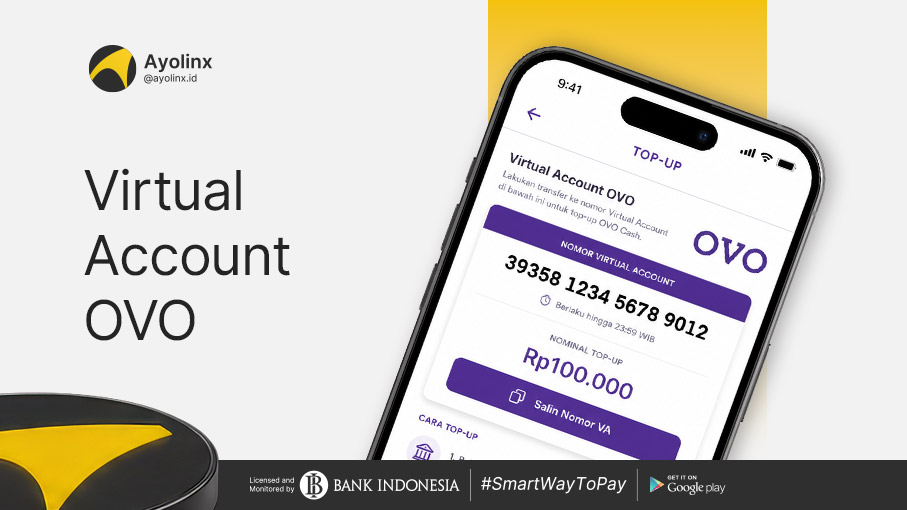
An OVO Virtual Account code is a payment code used to identify OVO balance top-up transactions through banking services.
Virtual Account itself is a virtual account number created to link a payment to a specific customer or transaction. Unlike transferring to a regular account, transactions through a Virtual Account can be automatically recognized and recorded by the system.
In the OVO top-up process, the Virtual Account number usually consists of:
Bank's OVO code + registered OVO mobile number
For example:
- BCA OVO Code: 39358
- Mobile Number: 081234567890
- Virtual Account Number: 39358081234567890
The code at the beginning tells the bank's system that the transaction is intended for OVO. Meanwhile, the mobile number is used to identify the OVO account that will receive the balance. Therefore, you must ensure the bank code and mobile number are correct before completing the payment.
List of OVO Virtual Account Codes from Various Banks
Here is a list of OVO Virtual Account codes for several commonly used banks in Indonesia.
| Bank | OVO Virtual Account Code | Format |
| BCA | 39358 | 39358 + OVO mobile number |
| Mandiri | 60001 | Enter code 60001, then mobile number |
| BRI | 88099 | 88099 + OVO mobile number |
| CIMB Niaga | 8099 | 8099 + OVO mobile number |
| Permata Bank | 84 | 84 + OVO mobile number |
| BNI (10-digit mobile number) | 874000 | 874000 + mobile number |
| BNI (11-digit mobile number) | 87400 | 87400 + mobile number |
| BNI (12-digit mobile number) | 8740 | 8740 + mobile number |
| BNI (13-digit mobile number) | 874 | 874 + mobile number |
Do All Banks Require an OVO Virtual Account Code?
Not always. A number of banks provide special menus such as:
- Top Up e-Wallet
- Digital Wallet (Dompet Elektronik)
- Reload (Isi Ulang)
- e-Commerce Payment
- Multi Payment
- OVO Biller
In these menus, users usually only need to select OVO, enter their mobile number, specify the top-up amount, and confirm the payment.
Some other banks may route the transaction through a specific account or bank network. Because procedures can vary, use the instructions displayed on the banking app or the top-up page in the OVO app.
Do not enter a code from another bank just because the OVO menu is not immediately visible. Make sure the method used matches the bank's instructions.
Also Read: Here Are The Virtual Account Codes For Funds From All Banks
How to Find Your OVO Virtual Account Number
You can find the number or top-up instructions directly through the OVO app with the following steps:
- Open the OVO application.
- Log into your account using your registered number.
- Select the menu Top Up menu on the main page.
- Select the top-up method via bank.
- Choose the bank you will use.
- Pay attention to the code and payment instructions displayed.
- Copy the Virtual Account number if available.
- Proceed with the payment via ATM, mobile banking, or internet banking.
Retrieving the number from the application can reduce the risk of using an outdated code or a code that doesn't match the bank.
How to Top Up OVO via Mobile Banking
The appearance and menu names on each banking application can vary. However, the general way to top up OVO via mobile banking is as follows:
- Open the mobile banking application.
- Log in using your account or the available security method.
- Select the menu Transfer, Virtual Account, Paymentor Top Up e-Wallet.
- Select OVO if available.
- Enter the Virtual Account code followed by the OVO mobile number if requested.
- Enter the balance amount you want to top up.
- Check the mobile number, account name, amount, and admin fee.
- Confirm the transaction.
- Enter your mobile banking PIN.
- Save the payment receipt until the balance arrives.
In some banks, the received balance may be reduced because the admin fee is deducted from the top-up amount. Therefore, check the fee details before confirming.
How to Top Up OVO via ATM
Besides using the application, topping up OVO can also be done through an ATM machine.
Here are the general steps:
- Insert your ATM card.
- Enter your ATM PIN.
- Select the menu Transaksi Lainnya.
- Select the menu Transfer, Paymentor Virtual Account.
- Enter the OVO code corresponding to the bank.
- Enter the mobile number registered with OVO.
- Enter the top-up amount.
- Check the transaction details.
- Select Correct, Yaor Continue.
- Wait until the transaction is complete.
- Take and save the payment receipt.
Menu names may differ for each bank. Follow the instructions displayed on the screen and do not proceed if the recipient's information is incorrect.
How to Top Up OVO via Internet Banking
Topping up your balance via internet banking generally has a process similar to mobile banking. The steps are:
- Log in to the official internet banking website.
- Select the payment or Virtual Account transfer menu.
- Select the source of funds account.
- Enter the OVO Virtual Account number.
- Enter the top-up amount.
- Check the transaction details.
- Authenticate using a token or available security method.
- Save the transaction receipt.
Make sure you only access official internet banking addresses. Avoid opening login links sent through unknown messages.
Examples of Using OVO Virtual Account Codes
For example, if the mobile number registered with OVO is 081234567890. then the code format for each bank is:
- BCA: 39358081234567890
- BRI: 88099081234567890
- CIMB Niaga: 8099081234567890
- Permata: 84081234567890
- BNI for a 12-digit number: 8740081234567890
For Bank Mandiri, ATM users enter the OVO company code 60001, then the mobile number according to the field and instructions that appear. These examples are only used to explain the format. Make sure you enter your own mobile number or the correct recipient's number.
Minimum Top Up and OVO Admin Fees
The minimum top-up amount and admin fees can vary according to the bank and payment channel. Based on the official OVO guide available when this article was written, the conditions are as follows:
| Bank | Minimum Top Up | Admin Fee |
| BCA | Rp20.000 | Rp1.000 |
| Mandiri | Rp20.000 | Rp1.200 |
| BNI | Rp20.000 | Rp1.000 |
| CIMB Niaga | Rp20.000 | Rp1.000 |
| BRI | Rp20.000 | Rp1.200 |
| Permata Bank | Rp20.000 | Rp1.000 |
Why Do OVO Top-Ups Fail?
OVO top-up transactions can fail due to the following reasons:
- Incorrect Virtual Account Code: Ensure the code used matches the bank. A BCA code cannot be used through the BRIVA menu, and vice versa.
- Mismatched Mobile Number: Enter a number that is actually registered to an OVO account. Double-check every digit before confirming the payment.
- Miscalculating the Number of Digits for BNI: BNI uses different codes based on the length of the mobile number. Choosing the wrong biller code can make the number unrecognizable.
- Insufficient Account Balance: Your account balance must be sufficient to pay the top-up amount and any additional fees that might be charged by the bank.
- Amount Below Minimum Limit: Ensure the top-up amount meets the minimum limit set for that payment method.
- Expired Virtual Account Number: For certain transactions, the Virtual Account number may have a payment time limit. Recreate the transaction if the code is no longer valid.
- Bank or OVO System is Experiencing Issues: System disruptions and service maintenance can cause transactions to be delayed or fail. Wait a few moments and recheck the payment status before trying again.
- Application Not Updated: Older versions of the app may experience issues when displaying menus or processing transactions. Update the OVO app and mobile banking app through official app stores.
What to Do If Your OVO Balance Hasn't Arrived
If your account has been deducted but the OVO balance hasn't increased, do not immediately top up again. Take the following steps:
- Check the transaction history in your mobile banking.
- Ensure the transaction status says successful.
- Recheck the destination mobile number.
- Open the OVO app and refresh the balance page.
- Check your OVO transaction history.
- Wait a few moments for the system to update.
- Save the transfer proof or reference number.
- Contact the bank or OVO Customer Support if the balance still hasn't arrived.
Accept OVO and Virtual Account Payments for Your Business with Ayolinx
The convenience of payments through OVO and Virtual Accounts can help businesses provide a more practical transaction experience for customers. With Ayolinx, businesses can accept various payment methods in one system, such as:
- Virtual Account
- Bank transfer
- E-wallets, including OVO
- QRIS
- Direct debit
- Payments via retail outlets
Through a single integration, businesses can provide more payment options while monitoring transaction statuses via a dashboard. The Virtual Account system also helps identify payments automatically, so the process of matching transfer receipts doesn't need to be done manually.
Conclusion
The OVO Virtual Account code is different for each bank. Therefore, ensure the code, mobile number, top-up amount, and admin fee are correct before making a transaction.
For business owners, providing a variety of payment methods can offer convenience to customers. With the Ayolinx Payment Gateway, businesses can accept payments via OVO (e-wallet), Virtual Accounts, QRIS, and other channels in a single system.
Provide more payment options to your customers and manage business transactions more practically with Ayolinx.